
Article summary
- Create a GA4 property and a Web data stream for the site.
- Install the Google tag on every page or through a supported CMS or tag manager.
- Use the Realtime report to verify data collection.
- Track useful business events instead of relying only on page views.
Key takeaways
- Create the property before campaigns launch.
- Use the correct Measurement ID.
- Verify the tag in Realtime.
- Define conversion events that match business goals.
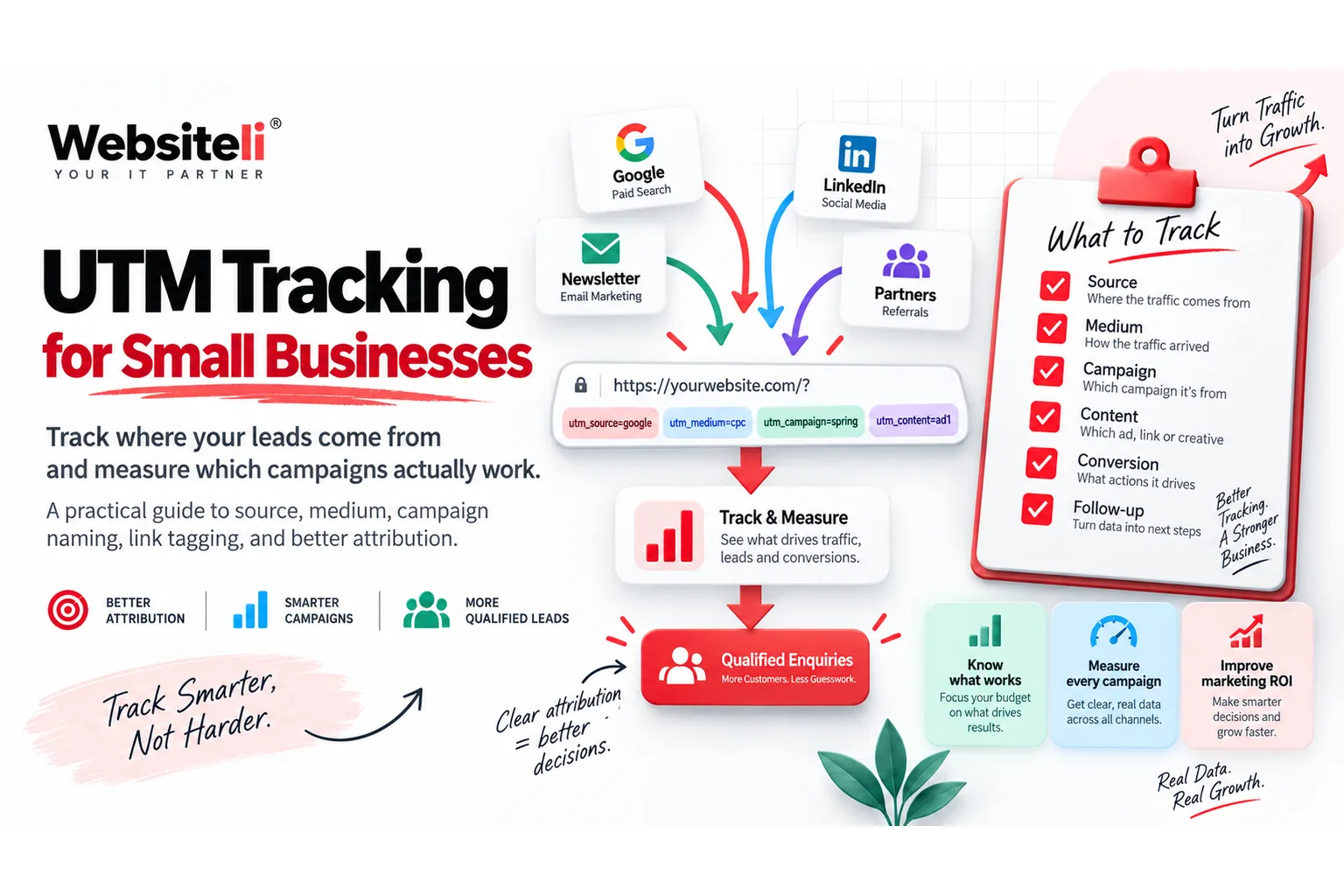
- Use UTM parameters consistently.
Set up analytics before you need the data
I prefer to set up Google Analytics before a website starts receiving meaningful traffic. If you wait until after an ad campaign or launch, the missing historical data cannot be recreated later.
Google Analytics 4 lets you measure traffic sources, page activity and custom events from one property.
Step 1: Create the GA4 property
In Google Analytics, create an account if you do not already have one, then create a GA4 property.
Set the reporting timezone and currency deliberately. These settings affect how reports are grouped and interpreted. Google then asks for basic business information before you create the property.
Step 2: Create a Web data stream
Inside the property, create a Web data stream.
Enter:
- the main website URL
- a clear stream name
Google recommends enabling Enhanced Measurement for common website interactions, and it can be changed later.
After creating the stream you will receive a Measurement ID that normally begins with 'G-'.
Step 3: Install the Google tag
There are three common approaches:
- native integration in a CMS or website builder
- Google Tag Manager
- manual installation in the site code
For a custom-coded website, the direct Google tag can be placed immediately after the opening '<head>' tag on each page. Google also documents CMS-specific integrations when the platform supports them.
Step 4: Verify the installation
Open the website in another browser window and then open the GA4 Realtime report.
Google notes that normal data collection can take some time to appear, while Realtime is the fastest way to verify that the implementation is sending activity.
If nothing appears, check:
- the Measurement ID
- whether the tag is present on the page
- whether a consent tool is blocking measurement
- whether the code is inside the correct page layout
- whether you are looking at the correct GA4 property
Google specifically recommends confirming that the tag ID in the site matches the ID of the selected data stream.
Step 5: Define the events that matter
Page views alone rarely tell you whether the website works.
For a service business I usually want to know about events such as:
- contact form submitted
- booking link clicked
- phone or email clicked
- newsletter signup
- pricing CTA clicked
- lead magnet downloaded
- important external link clicked
Choose events based on real business outcomes.
Step 6: Use UTM parameters
If you post links on Instagram, LinkedIn, newsletters or paid campaigns, add consistent UTM parameters.
That makes it easier to see which channel, campaign and content drove a visitor.
For a practical structure, see UTM Tracking for Small Businesses.
Step 7: Check the first reports
After data starts arriving, look at:
- acquisition
- landing pages
- engagement
- important events
- geographic/device breakdowns
- campaign traffic
The question is not simply "how many visitors did we get?" It is "which visitors did something valuable?"
How this fits into a website launch
My typical setup order is:
1. Search Console 2. GA4 3. conversion events 4. Meta business accounts if relevant 5. UTM conventions 6. reporting/dashboard
That gives the website a measurement foundation before serious promotion begins.
You can also run the free Websiteli Market Scan to review the website fundamentals before spending money on traffic.